Platform guides · English
Running Azeroth Survivors on Android with a Windows compatibility tool
Prepare the Windows files, choose between Winlator and a Droid Deck route, set up controls, and diagnose immediate exits, slow gameplay and audio problems.
If the browser game fails on your phone, another route is to run the Windows build through a compatibility tool. That requires the Windows game files and an Android tool that can run them. Installing Winlator does not install Azeroth Survivors, and the Windows archive is not an Android APK.
For browser play and a quick comparison of access routes, start with the Android overview. This guide covers the Windows-file route. The instructions combine the compatibility project’s documentation with linked player reports; we have not tested the game on a physical Android device.
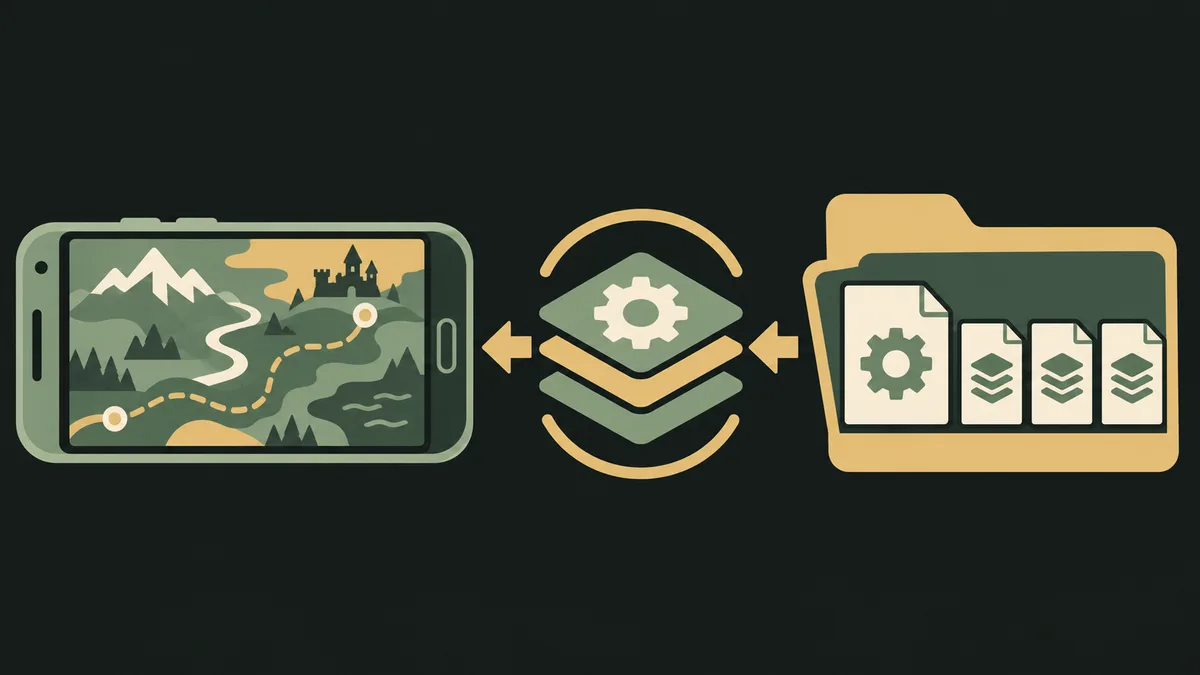
Choose one route before changing settings
| Route | What you open | What to check first |
|---|---|---|
| Mobile browser | The creator’s web page | Whether the browser can create the required graphics device. Follow loading help for a WebGPU error. |
| Winlator | The extracted Windows executable inside a container | Complete game files, access to their folder, graphics settings and a usable input profile. |
| Droid Deck with Proton | The Windows executable added as a non-Steam game | The project’s installation instructions, a working Steam environment and the game’s executable path. |
Winlator’s official project describes an Android application using Wine and Box86/Box64 to run Windows applications. Use that project’s releases and installation instructions; avoid unrelated downloads claiming to be an Azeroth Survivors APK.
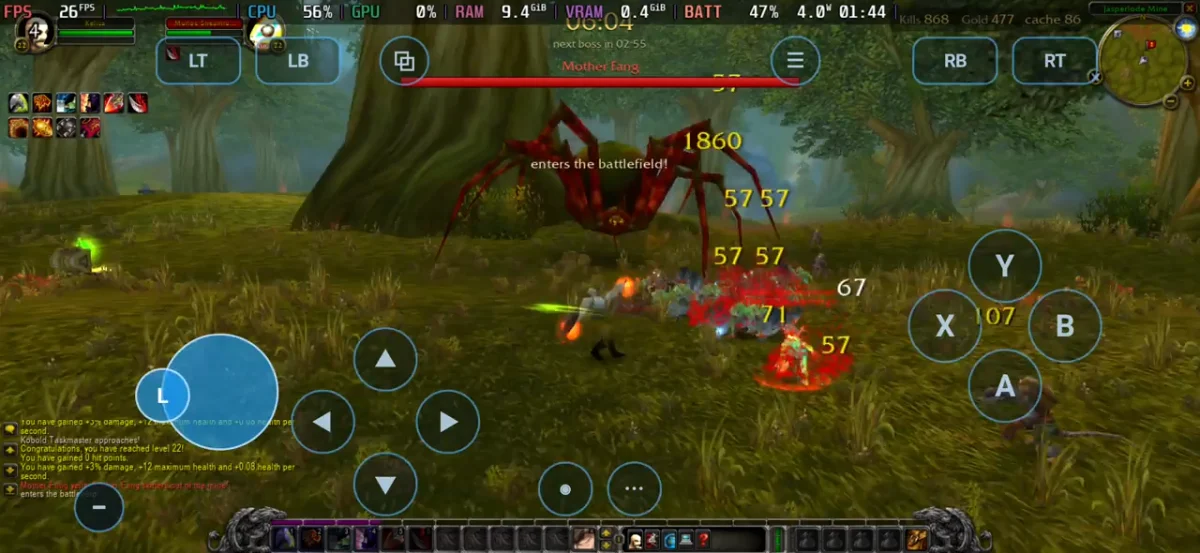
A Droid Deck player report describes adding the executable as a non-Steam game and using Proton on an S26 Ultra. It records frame drops and audio crackling, with a lower frame limit helping that session. It does not specify a game build or Proton version. Treat it as a separate setup example rather than a Winlator preset.
Prepare the files once
- Get the creator’s Windows archive through the download page. Keep the downloaded archive until extraction has completed successfully.
- Extract it with a tool that supports its format. The currently linked package is a RAR archive; renaming it to
.zipdoes not convert it. - Keep the executable and its accompanying files together. Do not copy only the
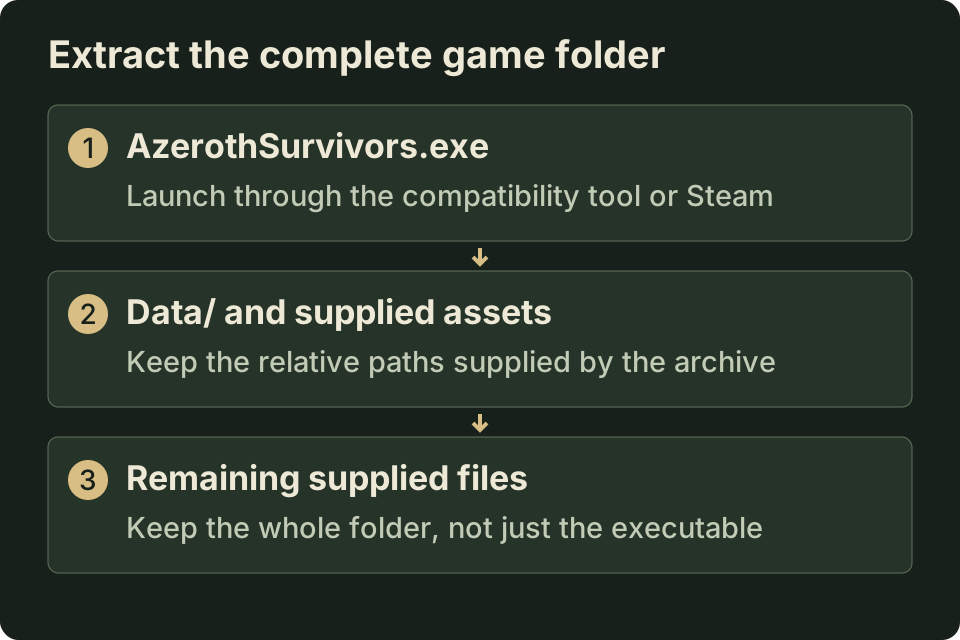
.exeinto a new folder. - Put the extracted folder somewhere your compatibility tool can access. Use that tool’s folder or drive mapping to reach it.
This folder diagram illustrates the relationship to preserve; it is not a screenshot or an exhaustive archive listing:
Back up existing progress with the game’s export function before experimenting with a different installation. See save transfer; moving game files does not establish that a different container or browser shares the same save.
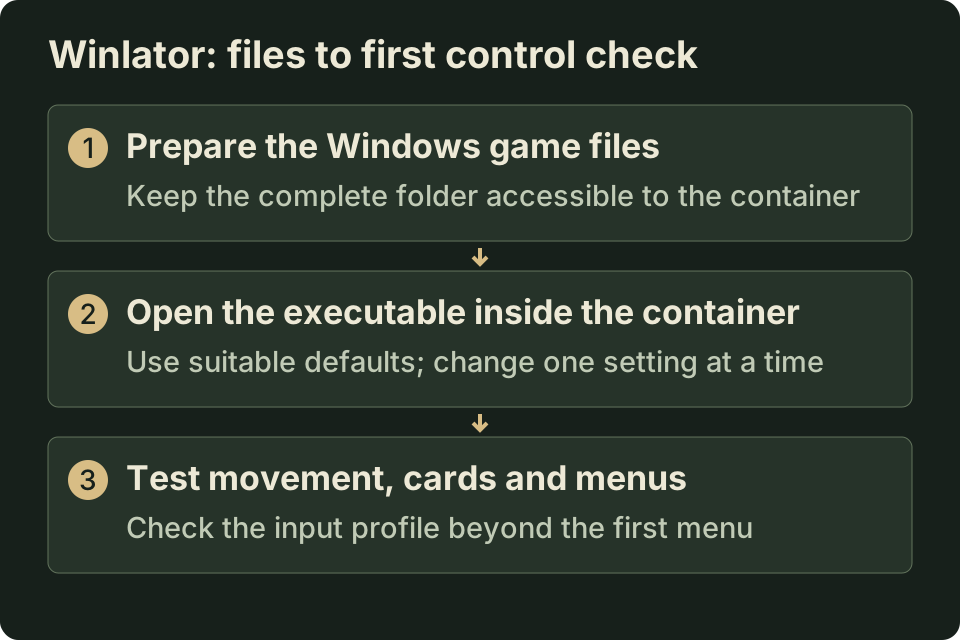
Set up Winlator and test input before a long run
Install Winlator from its official release page, open it and let its initial setup finish. Create a container and open the extracted game’s folder from within that container. The original mobile report describes playing through Winlator with configured controls, but does not supply a complete reproducible container preset.
Use the defaults appropriate to your device as a starting point, then change one setting at a time. A configuration copied from a different GPU or a different Winlator fork may not offer the same driver choices. For instability, Winlator’s own README suggests investigating the Box64 preset under the container’s advanced settings; it does not prescribe a game-specific preset.
Before committing to a run, make sure your input profile lets you:
- Move continuously without opening an Android gesture or losing the control overlay.
- Point and click accurately enough to select a class and an upgrade card.
- Open and close menus, including the pause menu.
Map movement to the game’s keyboard controls and provide a pointer/click action for menus. Test the first upgrade screen as well as movement: a character that moves correctly is not enough if you cannot choose the next card. An external controller also needs a mapping; connecting one does not prove the game will interpret its buttons as intended.
Diagnose the first failing step
Can the tool open the extracted folder?
  No → check extraction, folder access and drive mapping
  Yes → does the game reach its menu?
          No → inspect the launch error and container configuration
Yes → test movement, a card choice and continued gameplay| Symptom | Next useful action |
|---|---|
| Executable is missing or extraction reports an error | Recheck the archive download and extract again. Stop before changing graphics settings: they cannot restore a missing file. |
| Game closes immediately | Confirm you are opening the extracted executable with its companion files present. Record any error, then compare the tool version and container settings. Replies to the original Winlator post include immediate exits on other phones. |
| Menu works but movement or card selection does not | Adjust the input profile. Separate pointer problems from a frozen game by checking whether menus still respond. |
| Play becomes slow in a crowded fight | Lower an available resolution or visual setting and compare the same kind of scene. A quiet menu is not a useful performance comparison. |
| Audio crackles alongside frame drops | Check whether both improve with a lower frame limit, as in the Droid Deck report. That is an experiment, not a guaranteed fix for an audio-driver problem. |
Do not mix browser flags, Steam launch options and Winlator container settings into one checklist. They belong to different execution routes. If you switch routes, start a new result record rather than carrying forward an assumption that the earlier setup worked.
Keep a result you can reproduce
Record the phone and GPU, Android version, exact tool release or fork, game package, container graphics choices and control profile. Note where failure occurs: before the menu, while entering a zone, at the first upgrade or later in combat. Include the error text and a screenshot you captured yourself.
A report that identifies those conditions is more useful than “works on Android.” If you need a less experimental setup, use the Windows download.
Sources and scope
- Aethus: original game and platform download links.
- Winlator: official installation instructions and instability tips.
- starsforfeelings: Winlator mobile session and replies reporting immediate exits.
- TomasMichele69: Droid Deck, Proton and S26 Ultra session.
Sources reviewed November 5, 2026. The player posts do not identify their game build. Their results are not a compatibility certification for the current package or for other phones.
Ready for another run?
Play Azeroth Survivors